
How to Find Your WordPress Login URL
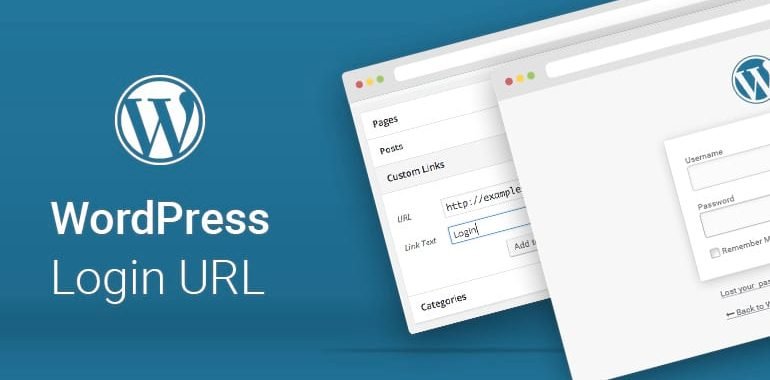
Finding your WordPress login URL is essential for accessing your website’s admin area, where you can manage content, customize themes, and install plugins. Whether you’re a beginner or an experienced user, knowing how to locate and secure your login URL is crucial for maintaining your site’s security and functionality. This comprehensive guide will walk you through the steps to find your WordPress login URL and provide tips on how to change and secure it.
1. Understanding the Default WordPress Login URL
By default, WordPress uses a standard URL structure for the login page. This URL is typically the same for all WordPress sites unless it has been customized.
Default Login URL:
• Standard Installation: If you installed WordPress in the root directory of your domain, the login URL will be:
www.yourwebsite.com/wp-login.php
or
www.yourwebsite.com/wp-admin
• Subdirectory Installation: If WordPress is installed in a subdirectory, the login URL will include the subdirectory name:
www.yourwebsite.com/subdirectory/wp-login.php
or
www.yourwebsite.com/subdirectory/wp-admin
• Subdomain Installation: For installations on a subdomain, the login URL will be:
subdomain.yourwebsite.com/wp-login.php
or
subdomain.yourwebsite.com/wp-admin
2. Bookmarking Your Login URL
To avoid the hassle of remembering your login URL, it’s a good idea to bookmark it in your browser. This way, you can quickly access the login page whenever you need to.
How to Bookmark:
1. Open your login URL in your browser.
2. Click the star icon in the address bar (or use the bookmark option in your browser menu).
3. Name your bookmark and choose a folder for easy access.
3. Adding a Login Link to Your Website
For even easier access, you can add a login link to your website’s navigation menu or footer.
Adding a Login Link:
1. Log in to your WordPress dashboard.
2. Go to Appearance > Menus.
3. Select the menu where you want to add the login link.
4. Click on Custom Links.
5. Enter your login URL and a label (e.g., “Login”).
6. Click Add to Menu and then Save Menu.
4. Using the “Remember Me” Option
When logging in, you can use the “Remember Me” option to stay logged in for a longer period. This can save you time by reducing the frequency of logins.
How to Use “Remember Me”:
1. Go to your login URL.
2. Enter our username and password.
3. Check the “Remember Me” box.
4. Click Log In.
5. Changing Your WordPress Login URL
Changing your login URL can enhance your site’s security by making it harder for hackers to find your login page. This can be done using plugins.
Recommended Plugins:
• WPS Hide Login: This plugin allows you to easily change your login URL to something unique.
• iThemes Security: A comprehensive security plugin that includes the option to change your login URL.
How to Change Your Login URL with WPS Hide Login:
1. Install and activate the WPS Hide Login plugin.
2. Go to Settings > WPS Hide Login.
3. Enter your new login URL (e.g., www.yourwebsite.com/mynewlogin).
4. Save changes.
6. Securing Your WordPress Login Page
Securing your login page is crucial to protect your site from unauthorized access. Here are some effective methods to enhance security:
Enable Two-Factor Authentication (2FA)
Two-factor authentication adds an extra layer of security by requiring a second form of verification in addition to your password.
• Plugins: Use plugins like Google Authenticator or Two Factor Authentication to enable 2FA.
Limit Login Attempts
Limiting the number of login attempts can prevent brute force attacks.
• Plugins: Use plugins like Limit Login Attempts Reloaded or WP Limit Login Attempts.
Use Strong Passwords
Ensure that all user accounts have strong, unique passwords.
• Password Managers: Use a password manager like LastPass or 1Password to generate and store strong passwords.
Implement CAPTCHA
Adding CAPTCHA to your login page can prevent automated bots from attempting to log in.
• Plugins: Use plugins like Google Captcha (reCAPTCHA) by BestWebSoft or WPForms.
7. Troubleshooting Login Issues
Sometimes, you may encounter issues when trying to log in to your WordPress site. Here are some common problems and their solutions:
Forgotten Password
If you forget your password, you can reset it using the “Lost your password?” link on the login page.
1. Click “Lost your password?” on the login page.
2. Enter your username or email address.
3. Check your email for a password reset link.
4. Follow the instructions to reset your password.
Login Redirect Loop
A login redirect loop occurs when you are redirected back to the login page after entering your credentials.
• Clear Cookies and Cache: Clear your browser’s cookies and cache.
• Deactivate Plugins: Deactivate all plugins via FTP or your hosting control panel and then reactivate them one by one to identify the culprit.
• Check .htaccess File: Ensure there are no incorrect rules in your .htaccess file.
White Screen of Death
The White Screen of Death (WSOD) can occur due to plugin or theme conflicts.
• Increase Memory Limit: Increase the PHP memory limit in your wp-config.php file.
• Deactivate Plugins/Themes: Deactivate all plugins and switch to a default theme to identify the issue.
8. Using Your Hosting Provider’s Dashboard
Many hosting providers offer easy access to your WordPress login page through their control panel.
How to Access via Hosting Dashboard:
1. Log in to your hosting account.
2. Navigate to the control panel (e.g., cPanel, Plesk).
3. Find the WordPress section and click on your site.
4. Look for a login button or link to access your WordPress admin area.
9. Bookmarking and Remembering Your Login URL
To avoid the hassle of remembering your login URL, it’s a good idea to bookmark it in your browser. This way, you can quickly access the login page whenever you need to.
How to Bookmark:
1. Open your login URL in your browser.
2. Click the star icon in the address bar (or use the bookmark option in your browser menu).
3. Name your bookmark and choose a folder for easy access.
Finding and securing your WordPress login URL is essential for managing your website effectively. By understanding the default login URL structure, bookmarking your login page, adding login links, changing your login URL, and implementing security measures, you can ensure that your site remains accessible and protected from unauthorized access.
Comments are closed.